Live streaming
How to keep a live stream steadier when you turn
You're talking to the camera when something happens just outside the frame: a shout, a splash, traffic moving behind you. You turn to show your viewers what it is. On a phone held in one hand, that quick pivot can make the picture look shaky or blurred. Here's why, and what a three-axis gimbal can help with.
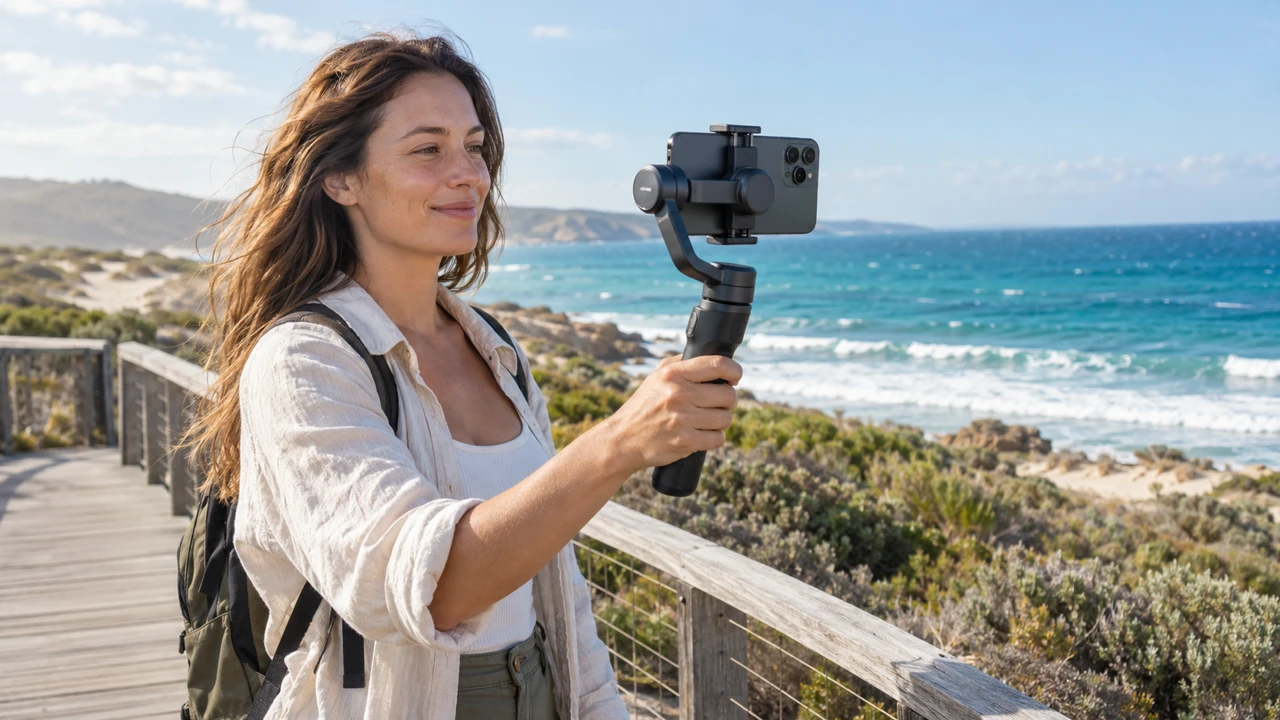
If you've gone live from your phone outdoors, you know the rhythm. In a selfie stream, the front camera and screen usually face you. When something catches your attention, first decide what you want viewers to see. Turning together with the phone changes the background behind you; to show the scene ahead, switch to the rear camera if your streaming app allows it, or carefully re-aim the phone. A rushed change of framing can make the picture difficult to follow.
With recorded video, you can often repeat a shot or cut an awkward transition. A live audience sees the transition as it happens. Slowing down, pausing your steps and then reframing gives viewers a clearer view.
A shaky frame can make a stream harder to watch. You cannot script every surprise, but you can practise how you reframe and choose a setup that helps you control the movement.
Why a quick turn looks rough on a live feed
Three things usually stack against you at once:
- Steps and stops. If you change pace or sidestep while you turn, that movement travels up your arm into the phone.
- Arm fatigue. Holding a phone at arm's length for minutes makes small shakes easier to see, and a sudden spin makes them worse.
- Fast panning. Whipping the lens toward something off to the side is exactly the kind of motion that reads as jerky on a viewer's screen.
Built-in phone stabilisation varies by phone, camera and video mode, and can already work well while walking. A gimbal may help control unwanted rotation and make deliberate pans smoother. It does not guarantee a sharp image: fast camera or subject movement, low light, focus changes and streaming compression can still affect the result.
What "three-axis" means in plain terms
A gimbal is a handle with a motorised cradle for your phone. Three-axis means it helps control unwanted rotation around three axes:
Sensors and motors adjust the phone orientation as your grip moves. Behaviour depends on the selected mode: a follow mode allows a controlled pan, while a lock mode aims to hold the viewing direction within the device limits. Three-axis stabilisation does not directly cancel the phone moving up and down with your steps. Gentle movement and slower turns still matter.
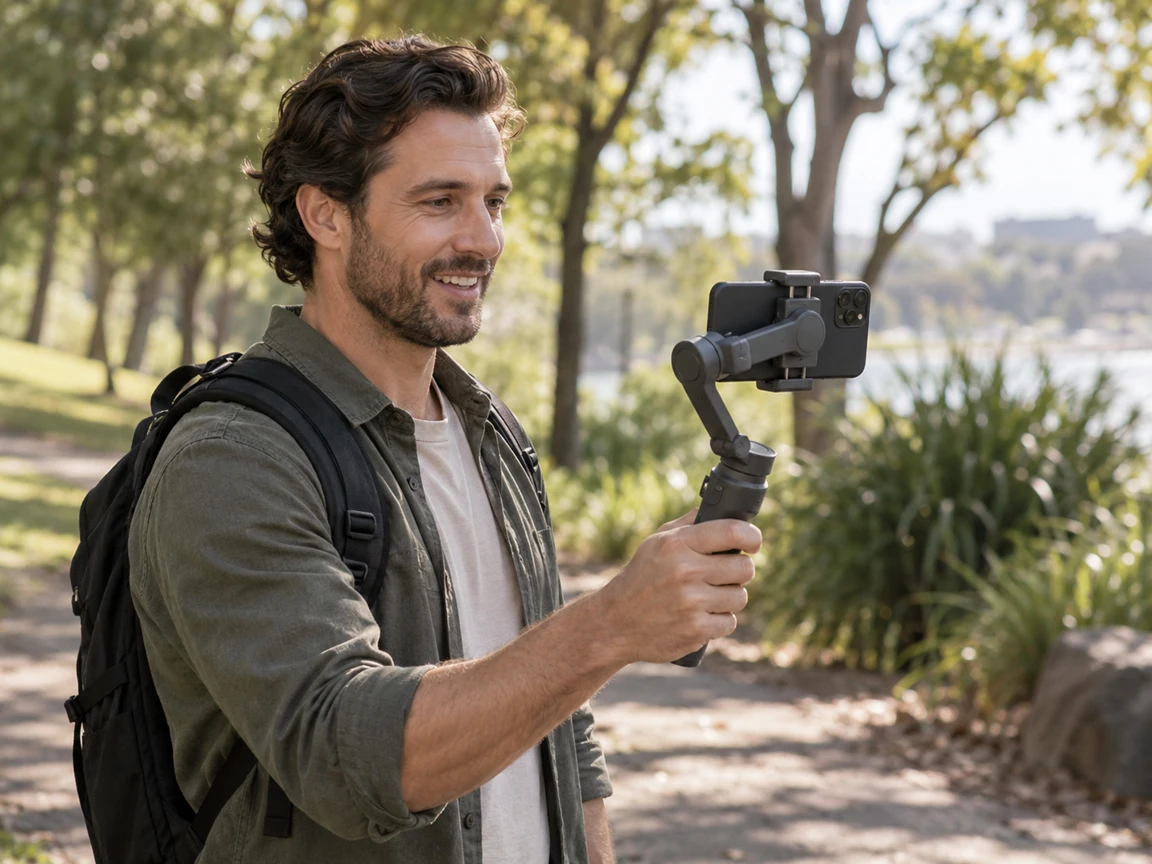
About the gimbal in this article
The linked retailer listing is for a product called the 3-Axis Phone Gimbal Stabilizer. Before buying, check the current listing and manual for:
- The exact model and supported stabilisation modes.
- Supported phone weight, width and thickness, including your case.
- Compatibility with your phone and chosen live-streaming app; tracking and remote controls may need a specific app.
- Whether a tripod mount or stand is included.
- Charging requirements, battery runtime and setup instructions.
Where a stabiliser might pay off
Outdoor live streams
Markets, foreshores and lookout paths are full of movement, and full of things that can pull your eye mid-sentence.
Walk-and-talk
Talking to camera while you move is tough to keep level at arm's length; a handle may offer a more comfortable grip, depending on the setup.
Off-frame surprises
When the interesting bit is beside or behind you, a suitable follow mode and a slower pan can help viewers follow the change of scene.
Long handheld sessions
A gimbal changes the grip but adds weight, so it can also increase fatigue. Keep it comfortably close and take breaks; use a compatible stand for stationary shots.
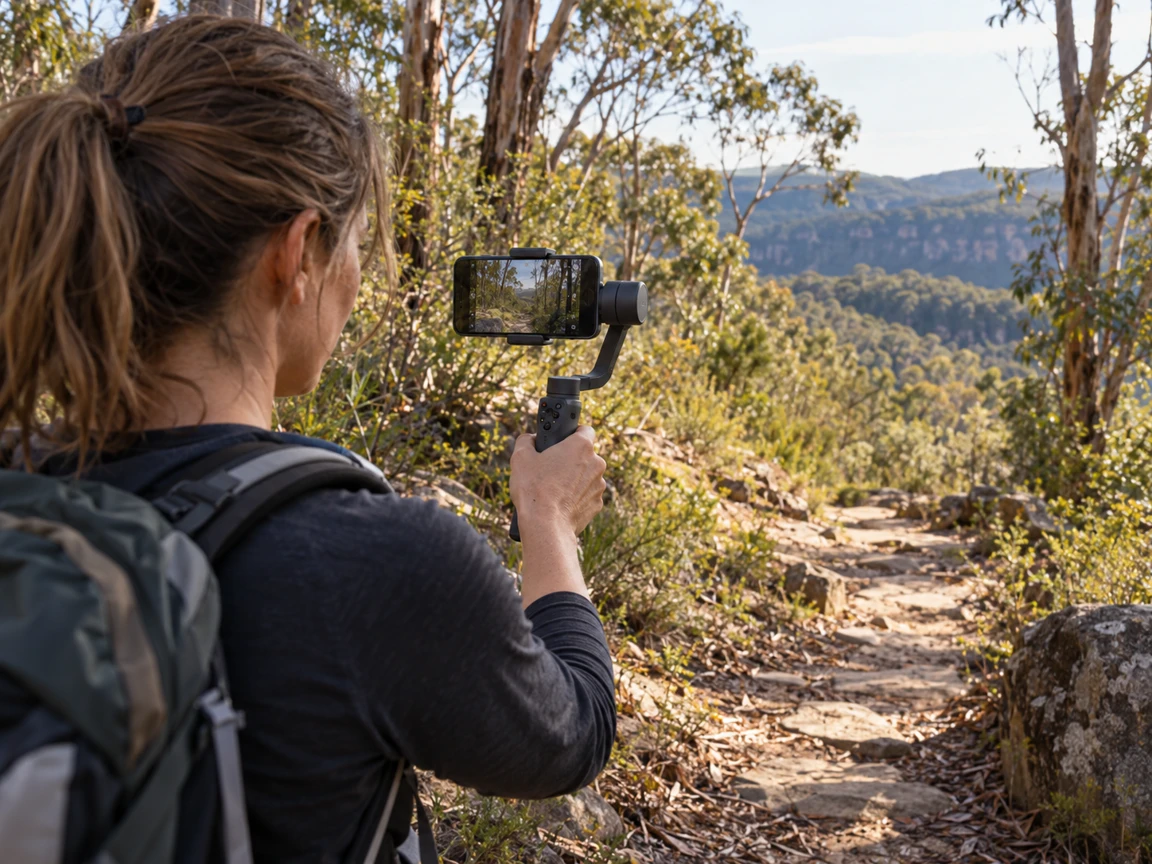
Five habits for smoother live video
- Soften your knees. Take short, gentle steps and avoid sudden stops; pause before reframing when practical.
- Keep elbows in. Keep your elbow comfortably bent where framing allows; selfie shots may need more distance.
- Pan slowly. Turn your body smoothly rather than flicking your wrist, and give the gimbal time to follow.
- Check the clamp. If using a gimbal, follow its mounting instructions and check the phone and case against its size and weight limits. Never force the clamp.
- Rehearse the turn. Test your framing, camera switching and gimbal mode in the streaming app before going live.
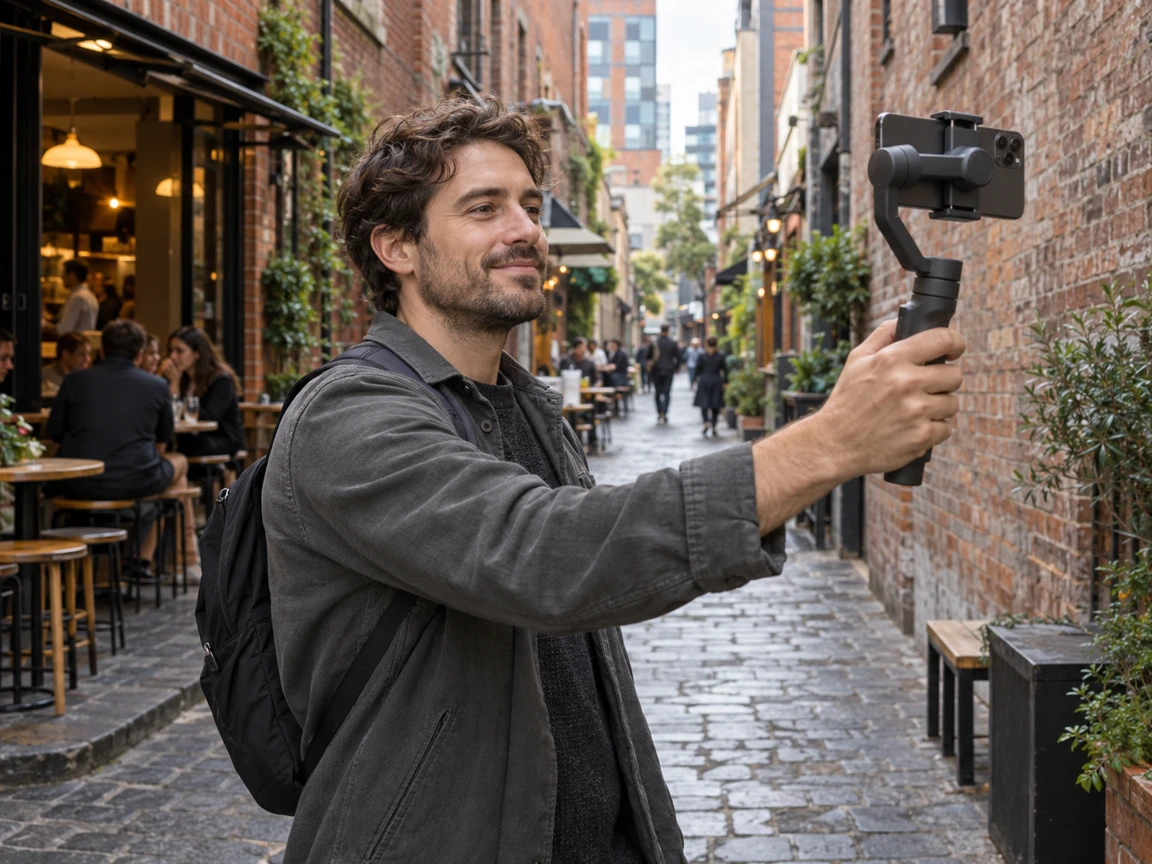
The product mentioned in this article
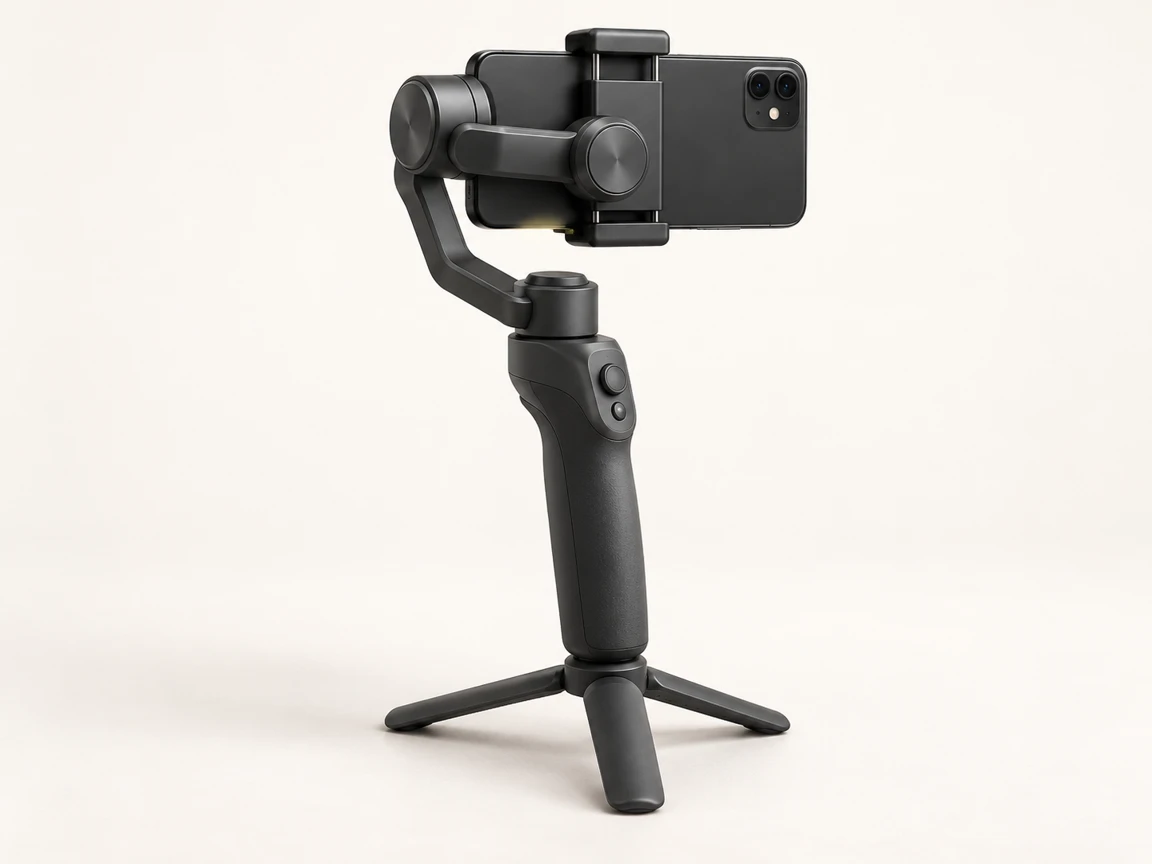
3-Axis Phone Gimbal Stabilizer
Check the retailer listing for the exact model, phone compatibility and included accessories.
See retailer for current price
About this advertisement
- This page is advertising, published by Firstpage. It is not independent journalism, a review or a product test.
- Links to the retailer are advertising links. Firstpage may receive payment for traffic or sales that result.
- Confirm product specifications, price, availability, delivery and returns directly with the retailer before ordering.
- Results vary. Footage quality depends on your phone, conditions and technique.